Write Your Email
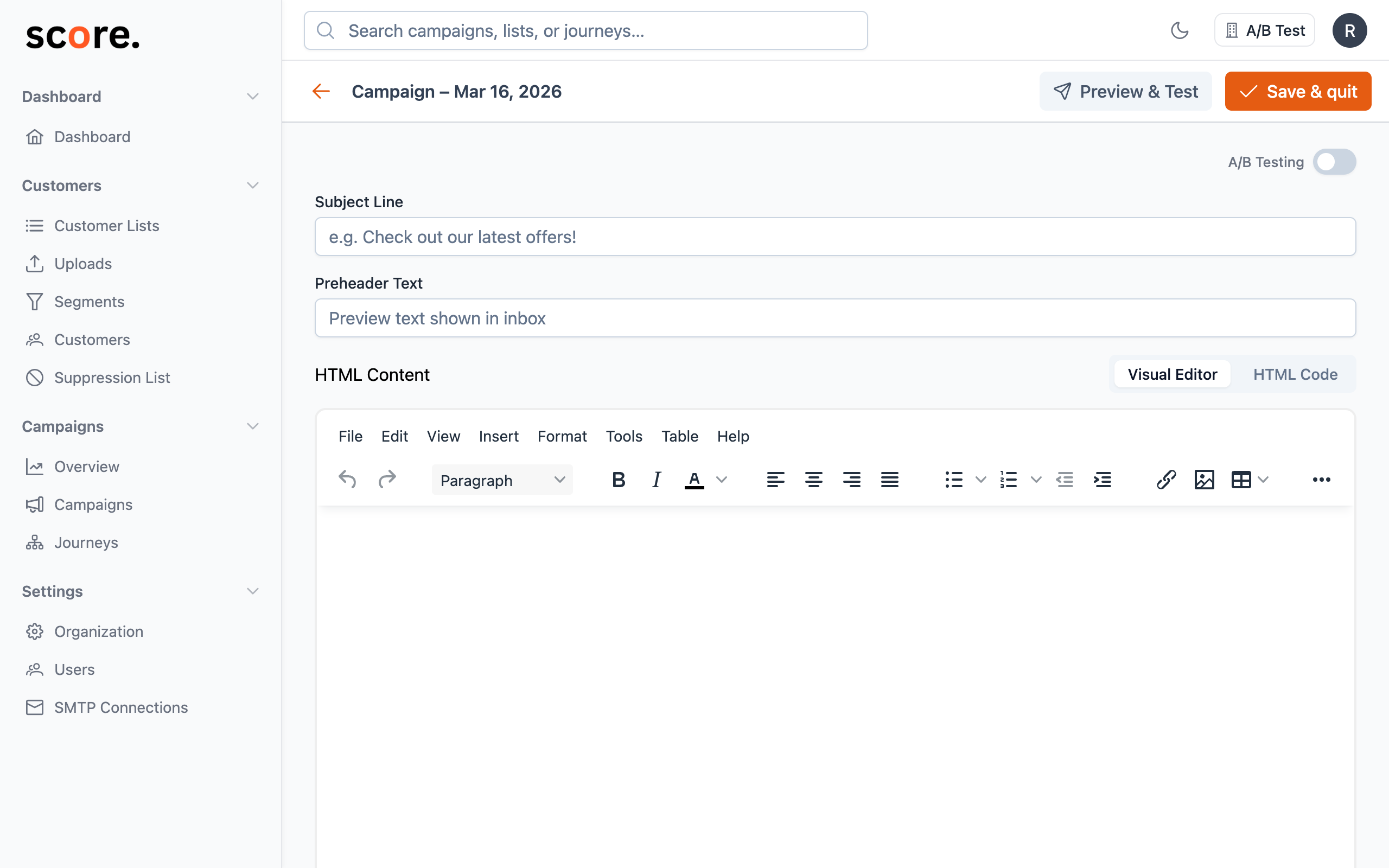
Score CRM's email editor lets you write HTML on one side and see exactly how it looks on the other — in real time.
Personalizing with Merge Tags
Merge tags let you insert each recipient's information into your email. Instead of "Hi there," you can say "Hi Sarah," — automatically, for every single recipient.
How they work
Wrap a field name in double curly braces:
Hi {{first_name}},
When the email sends, Score CRM replaces this with each person's actual first name.
What if the field is empty?
Use a fallback value after a pipe:
Hi {{first_name|there}},
If someone doesn't have a first name on file, they'll see "Hi there," instead of an awkward blank.
Available merge tags
Contact fields:
| Tag | What it inserts |
|---|---|
{{first_name}} | First name |
{{last_name}} | Last name |
{{email}} | Email address |
{{phone}} | Phone number |
{{city}} | City |
{{country}} | Country |
{{score}} | Engagement score |
Custom fields — any data you uploaded via CSV:
{{custom.plan_type}}
{{custom.company}}
{{custom.signup_date}}
Special tags:
| Tag | What it does |
|---|---|
{{unsubscribe_url}} | Inserts the unsubscribe link — always include this |
{{web_version_url}} | Link to view the email in a browser |
{{campaign_name}} | Your internal campaign name |
{{campaign_subject}} | The campaign's subject line |
Spintax — Automatic Content Variations
Spintax randomly picks one option for each recipient, so not everyone gets the exact same wording. This helps with deliverability (inbox providers are less likely to flag varied content) and keeps your emails feeling fresh.
How it works
Put options between single curly braces, separated by pipes:
{Hi|Hello|Hey} {{first_name|there}},

{We have exciting news|Big announcement|Something special for you}!
Each recipient randomly gets one combination. So one person might see "Hi Sarah, We have exciting news!" while another sees "Hey Mike, Something special for you!"
Spintax uses single braces: {option1|option2}
Merge tags use double braces: {{field_name}}
They work together in the same email.
Adding Images
Add an image using the toolbar's image button (Browse files), by pasting one directly into the editor, or by dragging a file in from your desktop. Score CRM hosts the image for you and inserts the finished link automatically — no separate image host needed. See Adding Images to Your Emails for the full walkthrough and Image Requirements and Limits for supported formats and size limits.
You can still paste an image URL from another website and it will work, but it's no longer the recommended way to add an image — see why hosted images are safer than embedded ones.
Email HTML Tips
Email clients (Gmail, Outlook, Apple Mail) don't support modern CSS the way browsers do. Here are the rules that matter:
- Use tables for layout — flexbox and CSS grid don't work in most email clients
- Put styles inline — use
style="..."on elements, not a separate stylesheet - Set fixed widths — use pixel widths (like 600px) for consistent rendering
- Always add alt text to images — some clients block images by default
- Keep it simple — the less fancy your layout, the more reliably it renders everywhere
Required Elements
Every marketing email needs these (some are legally required):
- Unsubscribe link — use
{{unsubscribe_url}}. Required by CAN-SPAM, GDPR, and most email regulations. - Physical mailing address — your company's street address (CAN-SPAM requirement)
- Web version link — consider adding
{{web_version_url}}for people whose email client doesn't render your email well
Starter Template
Here's a clean starting point you can customize:
<!DOCTYPE html>
<html>
<head>
  <meta charset="utf-8">
  <meta name="viewport" content="width=device-width, initial-scale=1.0">
</head>
<body style="margin: 0; padding: 0; background-color: #f4f4f4;">
  <table width="100%" cellpadding="0" cellspacing="0">
    <tr>
      <td align="center">
        <table width="600" cellpadding="0" cellspacing="0" style="background: #ffffff;">
          <tr>
            <td style="padding: 20px; text-align: center;">
              <h1>{{campaign_subject}}</h1>
            </td>
          </tr>
          <tr>
            <td style="padding: 20px;">
              <p>{Hi|Hello|Hey} {{first_name|there}},</p>
              <p>Your email content goes here.</p>
            </td>
          </tr>
          <tr>
            <td style="padding: 20px; text-align: center; font-size: 12px; color: #999;">
              <p>
                <a href="{{unsubscribe_url}}">Unsubscribe</a> |
                <a href="{{web_version_url}}">View in browser</a>
              </p>
              <p>123 Main St, City, State 12345</p>
            </td>
          </tr>
        </table>
      </td>
    </tr>
  </table>
</body>
</html>
Plain Text Version
Score CRM automatically generates a plain text version from your HTML. You can also write a custom one in the editor. Including a good plain text version improves deliverability and helps recipients who use screen readers or text-only email clients.