Delivery Settings
Most of the time, you'll pick one email provider and hit send. But as your email volume grows, Score CRM gives you tools to spread your sends across multiple providers, control delivery speed, and optimize deliverability.
Choosing Your Email Provider (SMTP)
In the campaign builder's SMTP section, you select which provider sends your emails. If you only have one SMTP connection set up, it's automatically selected.
If you have multiple providers, you choose a distribution mode:
Single
One provider handles everything. Simple, effective, and right for most campaigns.
Percentage Split
Divide your send across providers by percentage. For example:
- SendGrid: 70%
- SparkPost: 30%
When to use this:
- You're warming up a new provider and want to gradually increase its share
- You want a backup in case one provider has issues
- You're comparing deliverability between providers
Round Robin
Alternates evenly between providers, batch by batch. Good for maximizing throughput when you have multiple providers with similar capabilities.
Domain Routing
Send to specific providers based on the recipient's email domain. For example:
- Gmail recipients → SendGrid (best Gmail deliverability)
- Yahoo recipients → SparkPost
- Everyone else → Mailgun
This is an advanced strategy for high-volume senders who want to maximize inbox placement by using the best provider for each major mailbox.
Setting up domain routing
- Choose Domain Routing in the SMTP section
- Click + Add Rule for each routing rule
- For each rule, set:
- Match type: Preset (Gmail, Microsoft, Yahoo, Apple), exact domain, or wildcard
- Provider: Which SMTP connection handles these recipients
- Backup provider (optional): Failover if the primary provider has issues
- Configure a fallback for domains that don't match any rule — either a single provider or a percentage split
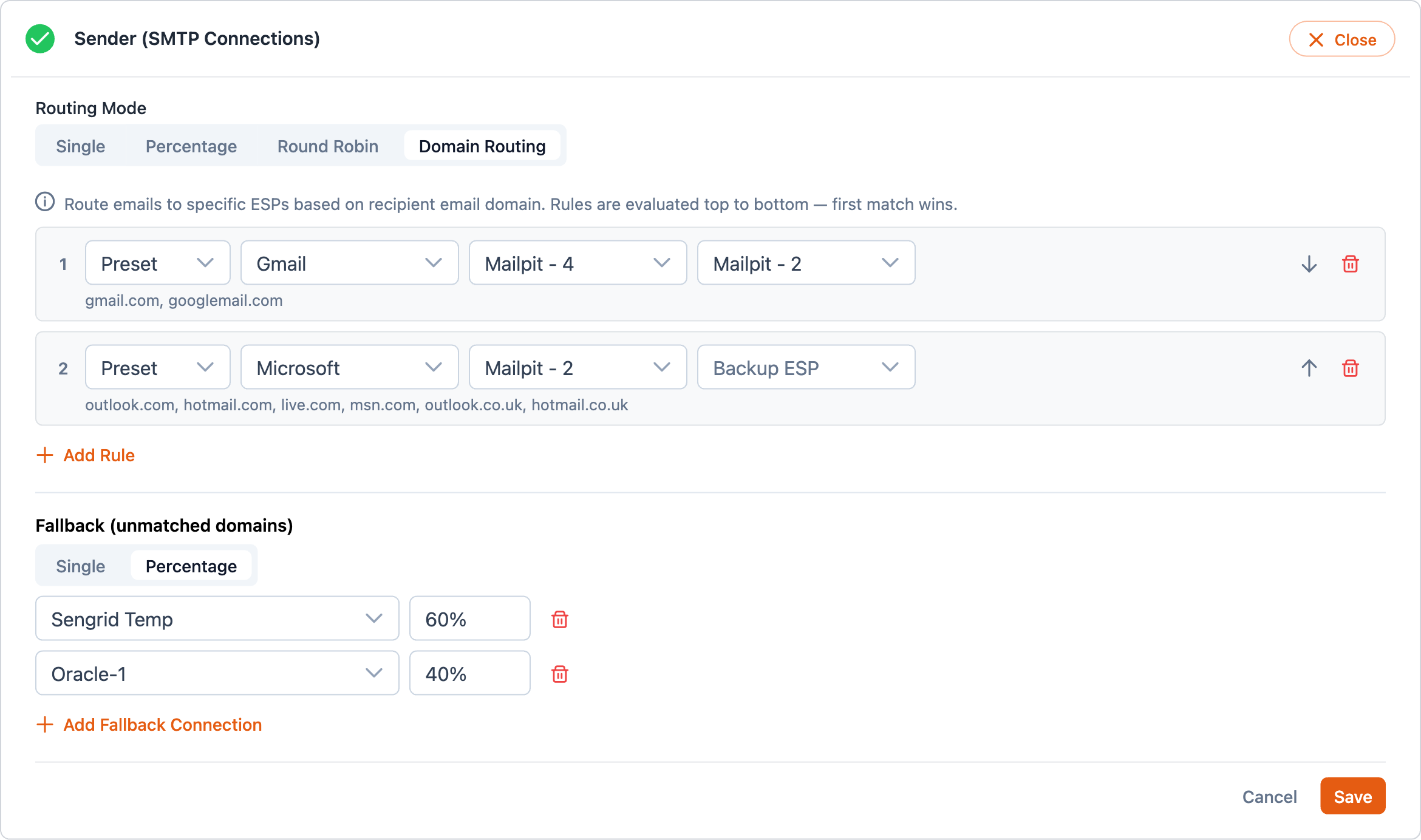
Rules are evaluated top to bottom — the first match wins. You can reorder them with the up/down arrows.
Presets make it easy
Instead of remembering every domain variation, presets cover the major providers:
| Preset | Covers |
|---|---|
| Gmail | gmail.com, googlemail.com |
| Microsoft | outlook.com, hotmail.com, live.com, msn.com, and more |
| Yahoo | yahoo.com, ymail.com, aol.com, rocketmail.com, and more |
| Apple | icloud.com, me.com, mac.com |
Controlling Delivery Speed
Throttling
Throttling limits how many emails go out per hour. Instead of blasting your entire list in minutes, you can pace the delivery.
When to use throttling:
- Warming up a new domain or IP — start slow and ramp up to build sender reputation
- Large sends — avoid overwhelming your provider's rate limits
- Deliverability protection — some inbox providers throttle or block senders who send too much too fast
To enable: toggle Enable Throttling in the campaign builder and set your Emails Per Hour (e.g., 6,000).
Score CRM smooths delivery evenly across the hour — so 6,000/hour means about 100/minute, not a burst of 6,000 at the start.
Email Quota — Cap the Total Emails Sent
While throttling controls how fast emails go out, the email quota controls how many go out in total. Set a number, and the campaign will send at most that many emails — no matter how big your audience is.
When to use a quota:
- IP / domain warm-up — send 100 today, 500 tomorrow, 2,000 the day after, against the same large segment. Just bump the quota each day.
- Stay under your provider's daily ceiling — if your ESP allows 10,000 sends per day on a new pool, set the quota to 10,000.
- Test sends at scale — send to "the first 100 contacts in this segment" before unleashing the campaign on the full audience.
- Hard budget control — finance signed off on 5,000 emails for this announcement; the quota guarantees you won't accidentally send the 5,001st.
How to set it:
In the campaign builder, go to Step 4 – Settings → Scheduling & Throttle and find the Max Emails to Send field. Enter a positive whole number, or leave it blank for no cap (the default).
As you type, a hint below the field tells you exactly what will happen:
Targeted: 200,000 contacts. Only the first 40 will receive this campaign — 199,960 will be skipped.
The Review step then shows the quota in the launch summary. If your quota is much smaller than the audience, that line is highlighted so you can double-check before launching.
Things to know:
- Quota counts every send attempt, not successful deliveries. If a few contacts bounce, the quota does not refill with extras. To budget for bounces, set the quota a little higher than your strict target.
- You cannot edit the quota after launch. While the campaign is Draft or Scheduled, the quota is editable. Once it's Running, Paused, or Completed, the field is locked. If you need a different quota, clone the campaign.
- The targeted audience is unchanged. Skipped contacts are not deleted, suppressed, or marked. They remain available for future campaigns.
- Recipients are picked in segment order, not at random. The first N contacts the platform reads from the segment are the ones who get the email.
When a campaign finishes because the quota stopped it (rather than because the audience ran out), the campaign list shows the status as Completed (quota reached) so you can spot it at a glance. The campaign report breaks down: Targeted, Quota, Sent, and Skipped due to quota.
IP Warm-Up
If you're starting with a new IP address or domain, you can set up an automatic warm-up ramp:
- Start rate: Where to begin (e.g., 500/hour)
- Target rate: Where to end up (e.g., 50,000/hour)
- Duration: How many days to ramp up
- Curve: Linear (steady increase) or exponential (starts slow, accelerates)
Day-Parting — Send Only During Business Hours
Restrict sending to specific time windows:
- Example: Monday–Friday 9 AM to 6 PM, Saturday 10 AM to 2 PM, nothing on Sunday
- The campaign automatically pauses outside your windows and resumes when the next window opens
This is great for B2B emails where you want to land in inboxes during work hours.
Scheduling
Two options:
- Send Immediately — emails start going out as soon as you launch
- Schedule — pick a future date and time
Scheduled times use your organization's timezone. If your org is set to Eastern time and you schedule for 9 AM, it sends at 9 AM Eastern regardless of where you are.
Combining These Features
All of these work together. A common setup for a large campaign:
- Schedule for Tuesday at 9 AM
- Throttle at 10,000 emails/hour
- Day-part to only send during business hours (9 AM – 6 PM)
- Domain route Gmail through SendGrid and everything else through Mailgun
The campaign starts Tuesday morning, sends at a controlled pace, pauses at 6 PM, resumes Wednesday at 9 AM, and routes each email through the best provider for its recipient's inbox.