Create and Send a Campaign
This walkthrough takes you from a blank campaign to emails landing in inboxes. The campaign builder is organized into collapsible sections — work through each one, then launch.
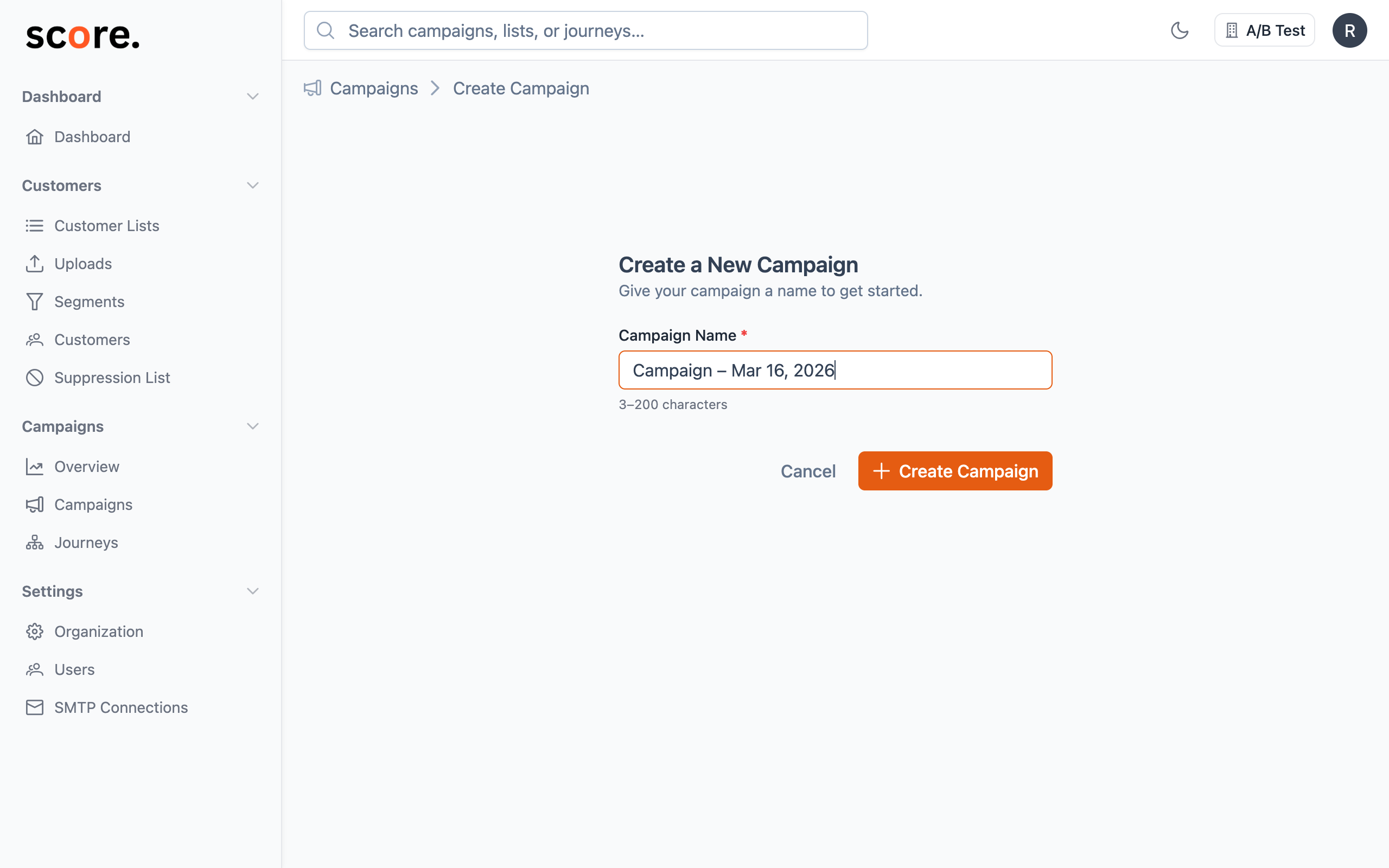
Campaign Info
Click Edit info to expand the first section. Here you set two things:
- Campaign Name — your internal label (recipients won't see this). Must be 3–200 characters.
- Send Type — choose Send Immediately (emails go out as soon as you launch) or Schedule (pick a future date and time). Scheduled times use your organization's timezone.
Click Save when you're done, or Cancel to discard changes.
Recipients
Click Add recipients to expand the targeting section. This is where you decide who gets the email.
Under Targeting, click + Add Target to add audiences:
- Choose List or Segment
- Pick the specific list or segment
- Set it to Include (send to these people) or Exclude (skip these people)
Add as many targets as you need. The final audience is:
Everyone in your includes, minus everyone in your excludes, minus anyone who's bounced, unsubscribed, or been suppressed.
Click Save to lock in your targeting.
After saving, you can estimate your total recipient count before launching — this runs your segment rules against live data so the number is always current.
Sender (SMTP Connections)
Click Configure SMTP to choose which email provider sends your campaign.
If you only have one SMTP connection, it's automatically selected. With multiple providers, you choose a distribution mode:
- Single — one provider handles everything
- Percentage Split — divide sends by percentage (e.g., 70% SendGrid, 30% SparkPost)
- Round Robin — alternate evenly between providers
- Domain Routing — route Gmail recipients through one provider, Yahoo through another, etc.
For most campaigns, Single is all you need. See Delivery Settings for multi-provider strategies.
Subject & Design
This section has two actions:
- Preview & Test — send a test email to check how it looks (more on this below)
- Edit design — opens the full email editor on a separate page
The Email Editor
Clicking Edit design takes you to a dedicated editor page with:
- A/B Testing toggle (top right) — turn this on to create multiple variants of your email. See A/B Testing for details.
- Subject Line — what shows up in the recipient's inbox. Make it compelling.
- Preheader Text — the preview text that appears after the subject in most email clients. Optional but recommended — it's prime real estate.
- HTML Content — the body of your email, with two editing modes:
- Visual Editor — a rich text editor with formatting toolbar (bold, italic, alignment, tables, etc.). Great for quick edits without touching code.
- HTML Code — write or paste raw HTML for full control over your email layout.
See Email Editor for details on merge tags, spintax, and email HTML best practices.
When you're done, click Save & quit to return to the campaign builder, or Preview & Test to send yourself a test email.
Other Settings
The bottom section has three groups of options with a Save Settings button:
Throttling
Toggle Enable Throttling to control how fast emails go out. When enabled, set your Emails Per Hour — useful for large sends or warming up a new sending domain. See Delivery Settings for details on throttling and warm-up.
Tracking
Two checkboxes, both enabled by default:
- Track Opens — detects when someone opens your email
- Track Clicks — tracks when someone clicks a link
Leave these on unless you have a specific reason not to — they power your campaign reports.
UTM Parameters
Toggle Enable UTM Parameters to automatically append tracking tags to every link in your email. This lets you track campaign traffic in Google Analytics or your analytics tool:
| Parameter | What it tracks |
|---|---|
| utm_source | Where the traffic came from |
| utm_medium | The channel — defaults to "email" |
| utm_campaign | Which campaign — auto-generated from your campaign name |
| utm_content | Which content variant (useful for A/B tests) |
Testing Before You Launch
Before going live, click Preview & Test (available at the top of the page or in the Subject & Design section) to send yourself a test email.
- Enter up to 10 email addresses
- Test emails arrive with
[TEST]in the subject line - Tracking is disabled in test emails so they don't affect your stats
Check that:
- Subject line and preheader look right in the inbox
- Merge tags are replaced with data (not showing raw code)
- Links work and go to the right pages
- The unsubscribe link is present and working
- Images load correctly
- Layout looks good on desktop and mobile
Email rendering varies across clients. Test in Gmail, Outlook, and Apple Mail at minimum. For thorough cross-client testing, services like Litmus or Email on Acid can preview across dozens of clients at once.
Launching
When everything looks good, click the green Launch Campaign button at the top right.
Score CRM will:
- Validate that all required sections are complete (you'll see orange warning icons on any incomplete sections)
- Resolve your audience (includes minus excludes minus suppressions)
- Start sending emails
Once launched, you can't edit the content or audience. You can pause, resume, or cancel — but you can't change what's being sent. That's why testing matters.
After Launch
While your campaign is running, you can monitor progress in real time — total sent, live open and click counts, and current sending speed.
Once complete, head to Campaign Reports to dig into the full results.
Duplicating a Campaign
Want to reuse a past campaign's settings?
- Go to your Campaigns list
- Click Duplicate on any campaign
- A new draft is created with all settings copied
- Edit what you need and launch
Great time-saver for recurring sends like weekly newsletters.