Subscriber Preference Center
The preference center is a hosted page where subscribers can manage their own email preferences -- choosing which topics they want to receive and controlling email frequency -- without fully unsubscribing.
How It Works
- You add the link -- include
{{preferences_url}}in your email templates - Subscriber clicks -- they land on a branded preference center page
- They choose -- toggle email topics on/off, pause emails, or unsubscribe
- Preferences apply immediately -- the next campaign respects their choices
The Preference Center Page
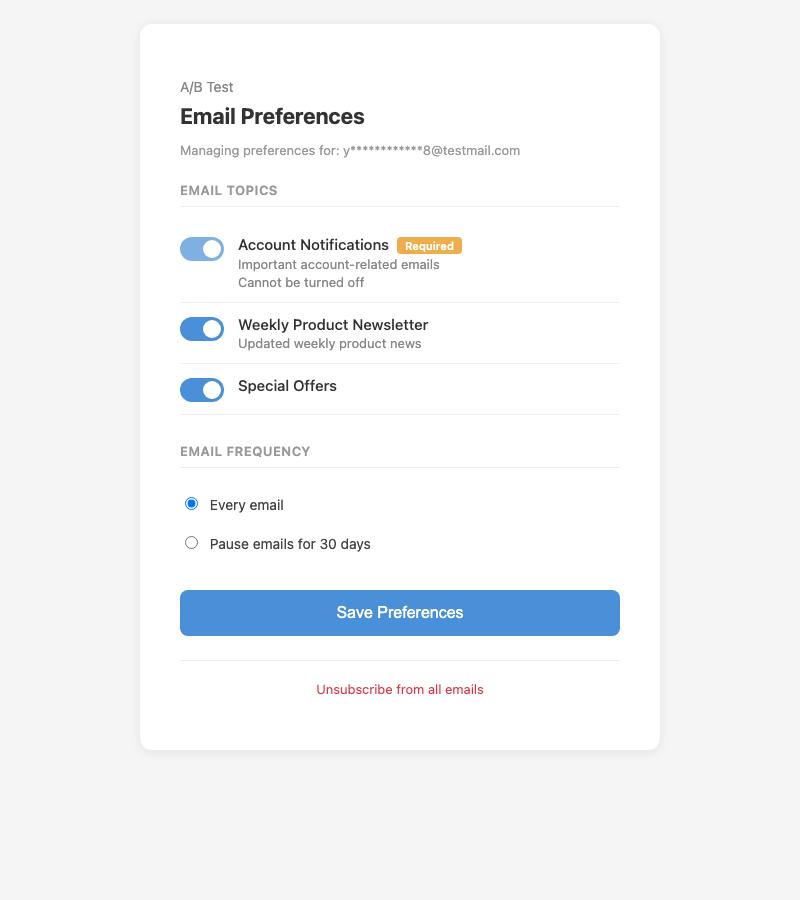
When a subscriber clicks the preference link, they see a page showing:
- Organization name at the top
- Email topics with toggle switches (on/off for each topic)
- Required topics that cannot be turned off (shown with a "Required" label)
- Email frequency options (every email, or pause for 30 days)
- Save button to apply changes
- Unsubscribe link at the bottom as a last resort
The subscriber's email is shown partially masked for privacy (e.g., j*****e@example.com).
Adding the Preference Link to Emails
Use the {{preferences_url}} merge tag in your email templates to include a link to the preference center.
Example HTML:
<a href="{{preferences_url}}">Manage your email preferences</a>
Important notes:
{{preferences_url}}generates a unique, signed link for each subscriber- Links expire after 90 days for security -- subscribers can always use the link from their most recent email
- This tag works alongside
{{unsubscribe_url}}-- both can be included in the same email - The
List-Unsubscribeheader continues to use{{unsubscribe_url}}per RFC 8058
Preference Link on Unsubscribe Page
When a subscriber clicks an unsubscribe link, the unsubscribe confirmation page includes a "Manage your email preferences" link. This gives subscribers a last-chance offramp -- they can adjust their preferences instead of fully unsubscribing.
How Topics Appear on the Preference Center
Topics are displayed based on your configuration in Settings > Email Topics:
| Setting | Behavior on Preference Center |
|---|---|
| Active topics | Shown as toggle switches in display order |
| Default Opt-In | New subscribers see the toggle set to ON |
| Default Opt-Out | New subscribers see the toggle set to OFF |
| Required | Toggle is shown but cannot be turned off; labeled "(Required)" |
| Inactive topics | Not shown on the preference center |
Admin Preference Management
Admins can view and update a subscriber's preferences from the Customers page:
- Navigate to Customers and select a list
- Find the subscriber in the list
- Click the sliders icon in the Actions column
- View current topic preferences and email frequency
- Toggle topics or change frequency
- Click Save Preferences
Changes made by admins are recorded in the audit log with the source marked as admin_ui.
Security
- Preference center links use JWT tokens signed with a per-organization secret
- Tokens expire after 90 days -- expired links show a message directing subscribers to their most recent email
- Email addresses are partially masked on the preference center page for privacy
- No authentication is required beyond the signed token (same security model as unsubscribe links)
Best Practices
- Always include the preference link -- add
{{preferences_url}}to your email footer alongside{{unsubscribe_url}} - Use clear topic names and descriptions -- these appear on the preference center page and help subscribers make informed choices
- Mark transactional emails as required -- account notifications and similar essential emails should use required topics so subscribers cannot opt out
- Keep topic count manageable -- too many choices can overwhelm subscribers. Aim for 3-5 well-defined topics
- Test the experience -- send yourself a test email, click the preference link, and verify the page looks correct with your topics