Importing Contacts
The fastest way to get your audience into Score CRM is by uploading a CSV file. You can import hundreds of thousands of contacts at once — Score CRM processes 100,000 rows in under 30 seconds.
Preparing Your CSV File
Your CSV needs just one required column: email. Everything else is optional but recommended — the more data you include, the better you can personalize and target your emails.
Columns You Can Include
| Column | Required? | What it's for |
|---|---|---|
email | Yes | The contact's email address — this is how Score CRM identifies each person |
first_name | No | For personalizing emails ("Hi Sarah!") |
last_name | No | Full name personalization |
phone | No | Phone number for your records |
city | No | Useful for location-based targeting |
country | No | Use 2-letter codes like US, UK, IN for best results |
score | No | A number you assign — great for lead scoring or engagement ratings |
| Any other column | No | Automatically saved as a custom field |
Example CSV
email,first_name,last_name,city,country,plan_type,signup_date
john@example.com,John,Doe,New York,US,premium,2024-01-15
jane@example.com,Jane,Smith,London,UK,free,2024-03-20
In this example, plan_type and signup_date don't match any standard column — so they're automatically saved as custom fields. You can later use these to personalize emails (e.g., "Your plan_type plan...") or build segments ("all premium users in the US").
How to Upload
- Go to Customers → Uploads
- Select the list you want to add these contacts to (or create a new list first)
- Click Upload CSV and pick your file
- Score CRM validates and imports your contacts
- Check the result in the upload history
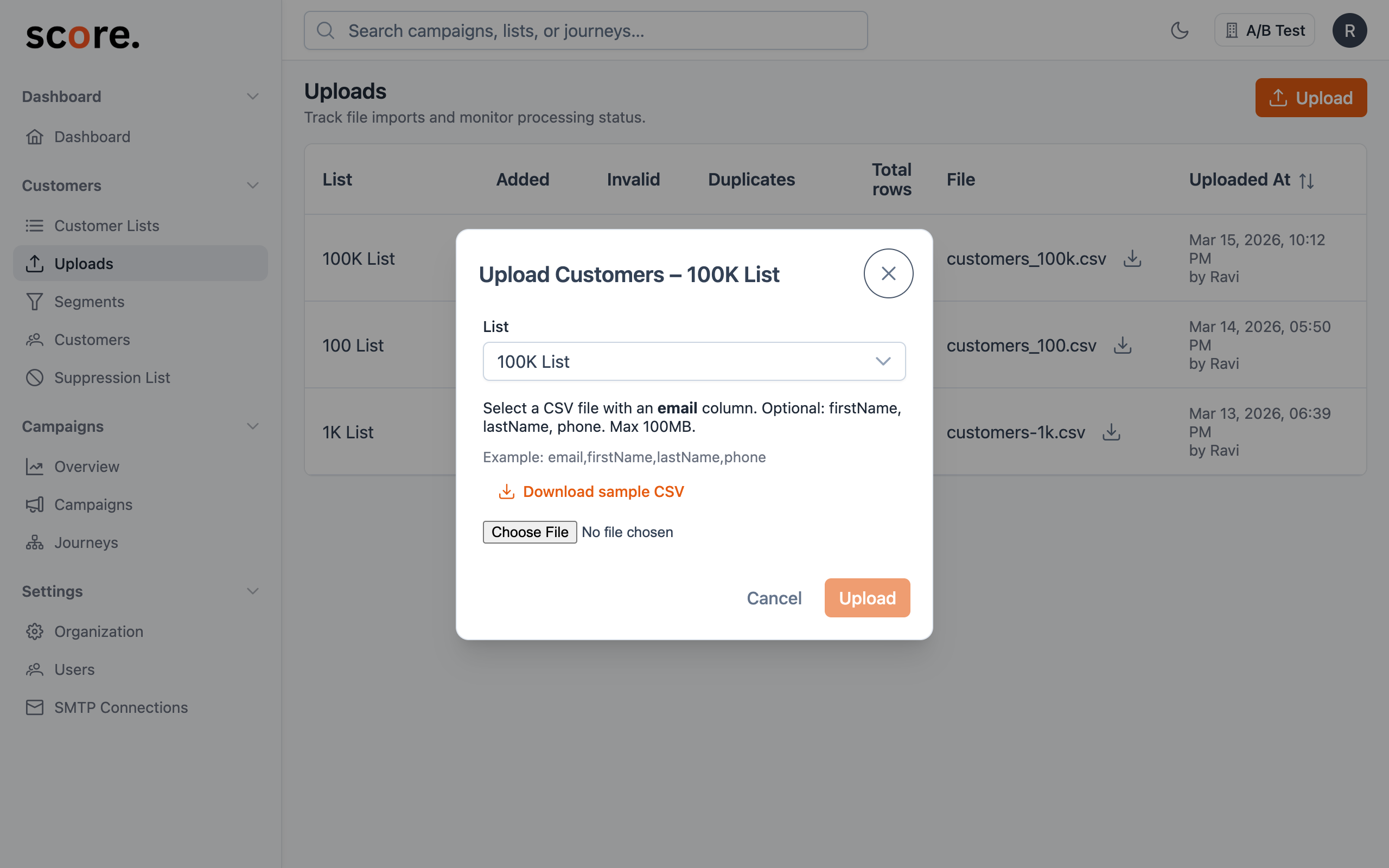
What Happens When You Upload
- Email validation — invalid email formats are skipped automatically. For deeper checks (mailbox existence, disposable addresses, catch-all domains), see Email Validation
- No duplicates — if a contact with the same email already exists, their info gets updated with the new data instead of creating a duplicate
- List assignment — every imported contact is added to the list you selected
- Custom fields — any non-standard columns are saved as custom fields on each contact
Uploading the same contact to multiple lists? That's perfectly fine. Score CRM knows it's the same person — they'll appear in both lists but only exist as one contact record. When you send a campaign to both lists, they'll only receive the email once.
Upload History
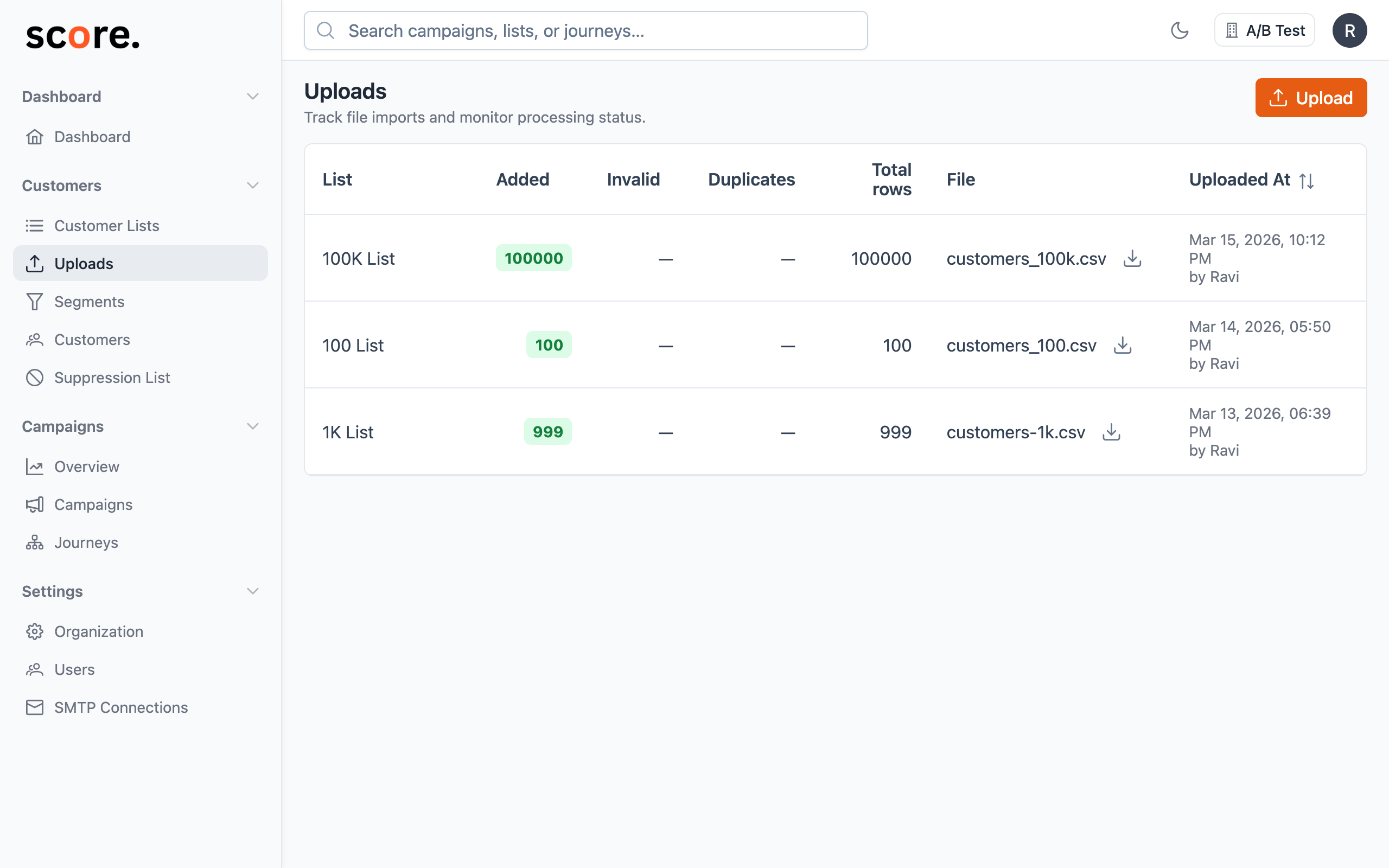
You can review all past imports on the Uploads page. Each entry shows:
- When the upload happened
- Which list the contacts were added to
- The file name
- How many contacts were processed
- Whether the upload succeeded or had issues
Troubleshooting Uploads
| Problem | How to fix it |
|---|---|
| "Missing email column" | Make sure your CSV has a column header named exactly email |
| Some contacts weren't imported | Check for invalid email formats — rows with bad emails are skipped |
| File is too large | Split your CSV into chunks of 200,000 rows or less |
| Special characters look wrong | Save your CSV with UTF-8 encoding (most spreadsheet apps have this option in "Save As") |
Tips for Clean Imports
- Test with a small file first — upload 10-50 rows to make sure your columns map correctly before importing your full list
- Use consistent column names — if you call it
plan_typein one upload, don't call itPlan Typeorplantypein the next - Use
YYYY-MM-DDfor dates — this format (e.g.,2024-01-15) lets you use date comparisons in segments later - Save as UTF-8 — especially if your data includes names with accents or non-English characters