Email Topics
Email topics let you categorize your emails so subscribers can choose what they want to receive. Instead of a single "unsubscribe from all" option, subscribers can opt out of specific categories while staying subscribed to others.
How It Works
- You define topics -- categories like "Newsletter", "Promotions", "Product Updates"
- You tag campaigns -- assign one or more topics to each campaign
- Subscribers choose -- via the preference center, they opt in or out of each topic
- Score CRM filters -- only sends to subscribers who are opted into at least one of the campaign's topics
Managing Email Topics
Creating Topics
- Go to Settings > Email Topics in the sidebar
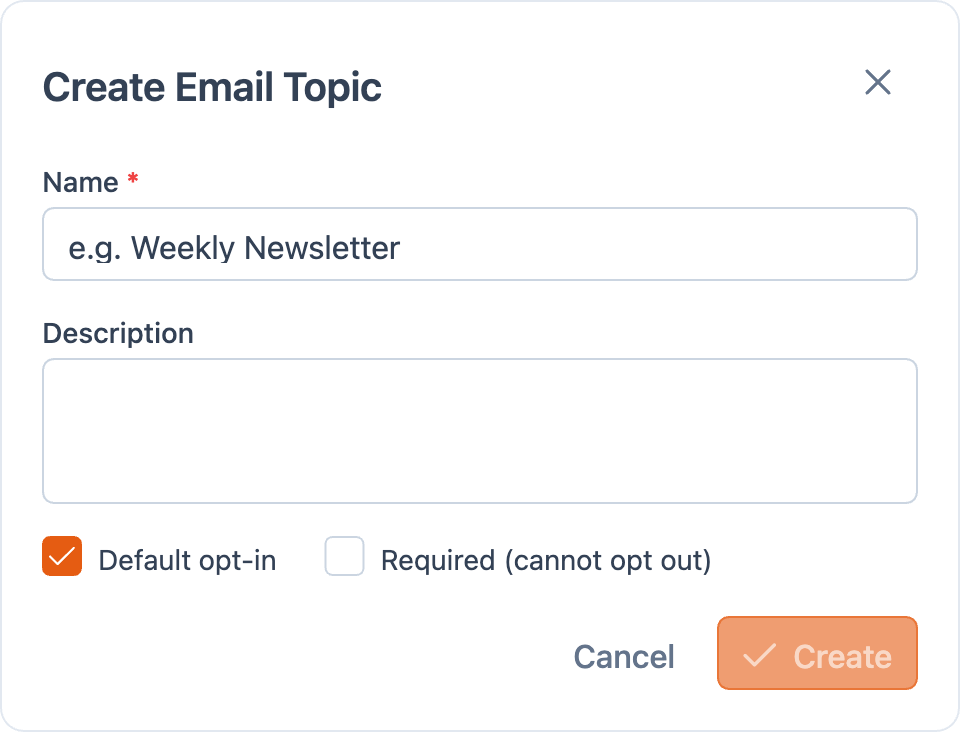
- Click Create Topic
- Fill in:
- Name -- the display name subscribers will see (e.g., "Weekly Newsletter")
- Description -- a brief explanation shown on the preference center
- Default Opt-In -- whether new subscribers are automatically opted in
- Required -- if checked, subscribers cannot opt out (use for transactional emails)
- Click Create
Topic Settings
| Setting | What it does |
|---|---|
| Default Opt-In | New subscribers with no explicit preference are treated as opted in. Best for topics most subscribers want. |
| Default Opt-Out | New subscribers must explicitly opt in. Best for optional topics like promotions. |
| Required | Subscribers cannot opt out. Use only for essential communications like account notifications or transactional emails. |
Editing and Deleting Topics
- Click the pencil icon next to a topic to edit its name, description, or settings
- Click the trash icon to deactivate a topic. Deactivated topics are removed from the preference center but existing preferences are preserved
- Use the up/down arrows to reorder how topics appear on the preference center
Limits
- Maximum 20 topics per organization
- Topic names must be unique within your organization
- A URL-safe slug is automatically generated from the topic name
Tagging Campaigns with Topics
When creating or editing a campaign, you'll see a Topics field in the campaign settings:
- Select one or more topics from the dropdown
- If topics are selected: only subscribers opted into at least one of those topics will receive the campaign
- If no topics are selected: the campaign goes to all active (non-suppressed) subscribers, same as before
This is fully backward compatible -- existing campaigns without topics continue to work as they always have.
How Topic Filtering Works During Send
When a campaign is launched, Score CRM checks each potential recipient:
- Campaign has no topics? Skip topic filtering entirely (all active subscribers included)
- For each campaign topic, check the subscriber:
- Explicitly opted in (preference = yes) -- include
- Explicitly opted out (preference = no) -- exclude
- No explicit preference -- use the topic's default opt-in setting
- Subscriber is included if opted into at least one campaign topic
Best Practices
- Start simple -- begin with 2-3 broad topics. You can always add more later
- Use clear names -- subscribers should instantly understand what each topic covers
- Write good descriptions -- these appear on the preference center and help subscribers make informed choices
- Set defaults thoughtfully -- default opt-in for core content, default opt-out for promotional or optional content
- Mark transactional as required -- account notifications, password resets, and other essential emails should be required topics