Create Your First Segment
Score CRM's segment builder lets you create targeted audiences visually — no technical skills needed. Just pick your rules, and Score CRM finds the matching contacts.
Quick Start
- Click Segments in the sidebar
- Click New Segment
- Give it a clear, descriptive name (e.g., "Engaged US Subscribers — Last 30 Days")
- Add your targeting rules (details below)
- Click Preview to see how many contacts match
- Click Save
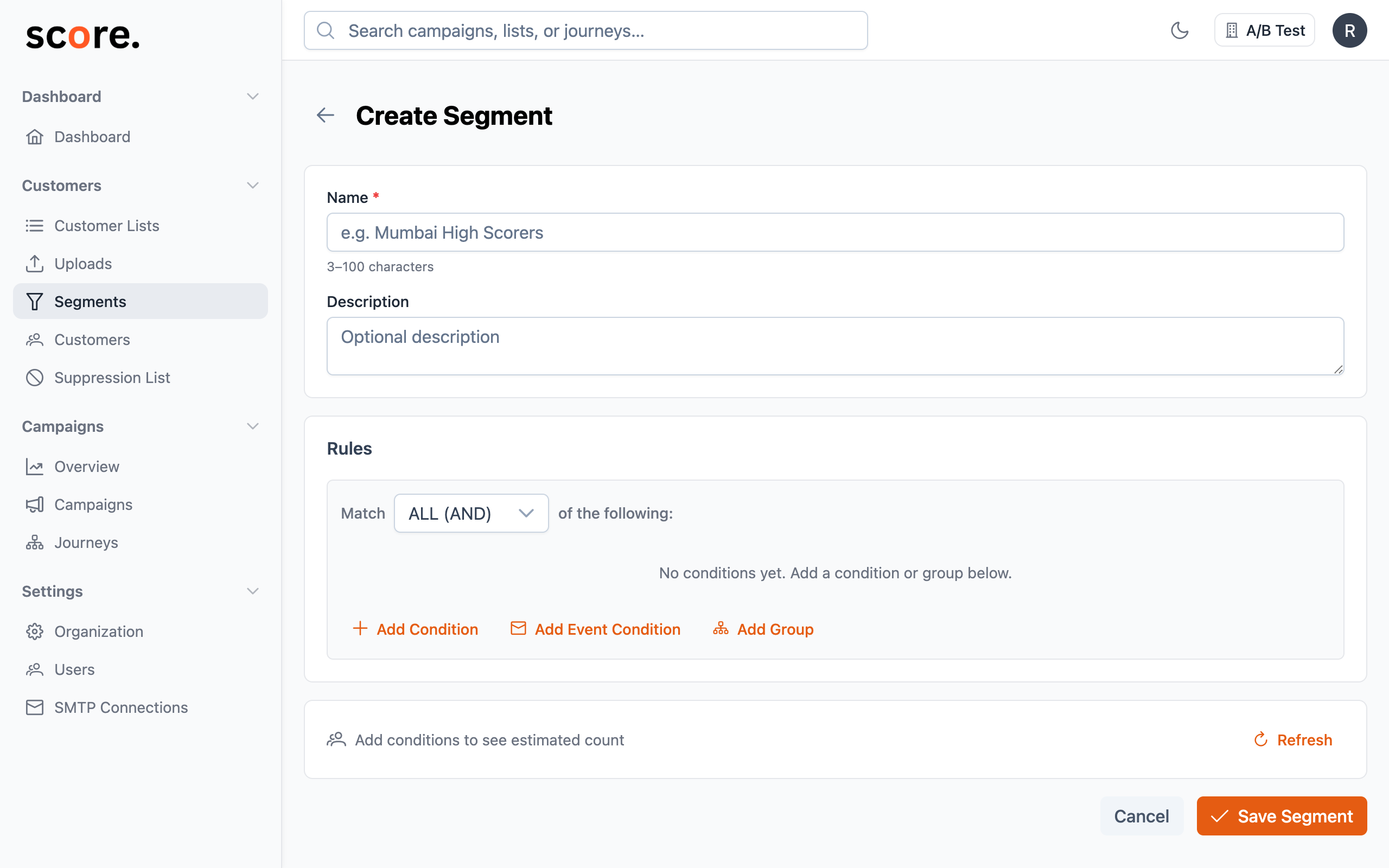
That's it — your segment is ready to use in campaigns and journeys.
Two Ways to Target Contacts
1. Filter by Contact Details (Attribute Conditions)
Use any information you have about your contacts to narrow your audience:
Built-in fields you can filter on:
- Name (first name, last name)
- Email address
- Phone number
- City and country
- Engagement score
Custom fields — any extra data you uploaded via CSV (like plan type, company name, signup date, industry, etc.) is also available for filtering.
Available filters:
| Filter | What it does | Example |
|---|---|---|
| equals | Exact match | Country equals "US" |
| not equals | Exclude a value | City not equals "London" |
| contains | Partial text match | Email contains "@gmail" |
| starts with | Text begins with | First name starts with "J" |
| ends with | Text ends with | Email ends with ".edu" |
| greater than | Number comparison | Score greater than 50 |
| less than | Number comparison | Score less than 25 |
| between | Number range | Score between 10 and 90 |
| is set | Field has a value | Phone is set |
| is not set | Field is empty | Company is not set |
2. Filter by Email Behavior (Event Conditions)
Target contacts based on how they've interacted with your emails:
- Opened — opened any email (or a specific campaign)
- Clicked — clicked a link in an email
- Bounced — email couldn't be delivered
- Complained — marked your email as spam
- Unsubscribed — opted out via unsubscribe link
For each behavior, you choose:
- Has done — they DID perform this action
- Has not done — they did NOT perform this action
- Time window — within the last X minutes, hours, days, months, or years
- Specific campaign (optional) — limit to a particular campaign's activity
Example: "Contacts who have NOT opened any email in the last 90 days" — this is your re-engagement audience.
Combining Multiple Rules
When you add multiple rules, you can control how they work together.
AND — All rules must match
Use this when you want to narrow your audience. Every condition must be true for a contact to be included.
Contacts in New York AND with a score above 50 AND on a premium plan
OR — Any rule can match
Use this when you want to broaden your audience. A contact is included if any one condition is true.
Contacts in New York OR London OR Tokyo
Nesting — Mix AND and OR
For more sophisticated targeting, you can nest groups inside each other:
Contacts in (New York OR London) AND on a (premium OR enterprise plan) AND who opened an email in the last 30 days
To create nested rules:
- Click Add Group
- Choose AND or OR for the group
- Add conditions inside the group
- Nest as many levels deep as you need
Segment Ideas to Get You Started
Your Most Engaged Contacts
Target people who are actively reading and clicking your emails:
Score greater than 80
AND has done "clicked" in last 30 days
Win-Back Campaign Audience
Find people who've gone quiet but haven't unsubscribed:
Has not done "opened" in last 90 days
AND is_unsubscribed equals false
Location-Based Promotion
Target enterprise customers in North America:
(Country equals "US" OR Country equals "CA")
AND plan_type equals "enterprise"
New Subscribers Not Yet Engaged
Reach people who signed up recently but haven't interacted:
signup_date greater than "2025-01-01"
AND has not done "opened" in last 14 days
Editing and Deleting Segments
- Edit: Click any segment from the list, update the rules, and save
- Delete: Click the delete icon on the segment list page
Deleting a segment doesn't delete any contacts — it just removes the targeting rules. However, any campaigns or journeys that reference the deleted segment will no longer be able to target that audience.
Best Practices
- Use descriptive names — "US Enterprise — Active Last 30 Days" tells your team exactly what the segment contains. "Segment 1" doesn't.
- Start simple — begin with 1-2 rules, check the audience size, then add more rules to refine.
- Preview often — check how many contacts match as you add each rule. This helps you avoid audiences that are too big or too small.
- Combine segments with lists — use segments for dynamic targeting and lists for fixed exclusions.
- Watch for dramatic size changes — if a segment suddenly gets much bigger or smaller, your data may have changed in unexpected ways.