Uploading Customers
Score CRM supports bulk customer imports through CSV file uploads. The platform is optimized to process 100,000 rows in under 30 seconds.
CSV Format
Your CSV file must include an email column. All other columns are optional:
Standard Fields
| Column | Required | Description |
|---|---|---|
email | ✅ Yes | Customer's email address (unique identifier) |
first_name | No | First name |
last_name | No | Last name |
phone | No | Phone number |
city | No | City |
country | No | Country (2-letter ISO code recommended) |
score | No | Numeric score value |
Custom Fields
Any column in your CSV that doesn't match a standard field name is automatically treated as a custom field. Custom fields are stored as key-value pairs and can be used in segmentation, merge tags, and personalization.
Example CSV with custom fields:
email,first_name,last_name,city,country,plan_type,signup_date,lifetime_value
john@example.com,John,Doe,New York,US,premium,2024-01-15,250.00
jane@example.com,Jane,Smith,London,UK,free,2024-03-20,0
In this example, plan_type, signup_date, and lifetime_value are stored as custom fields.
Upload Process
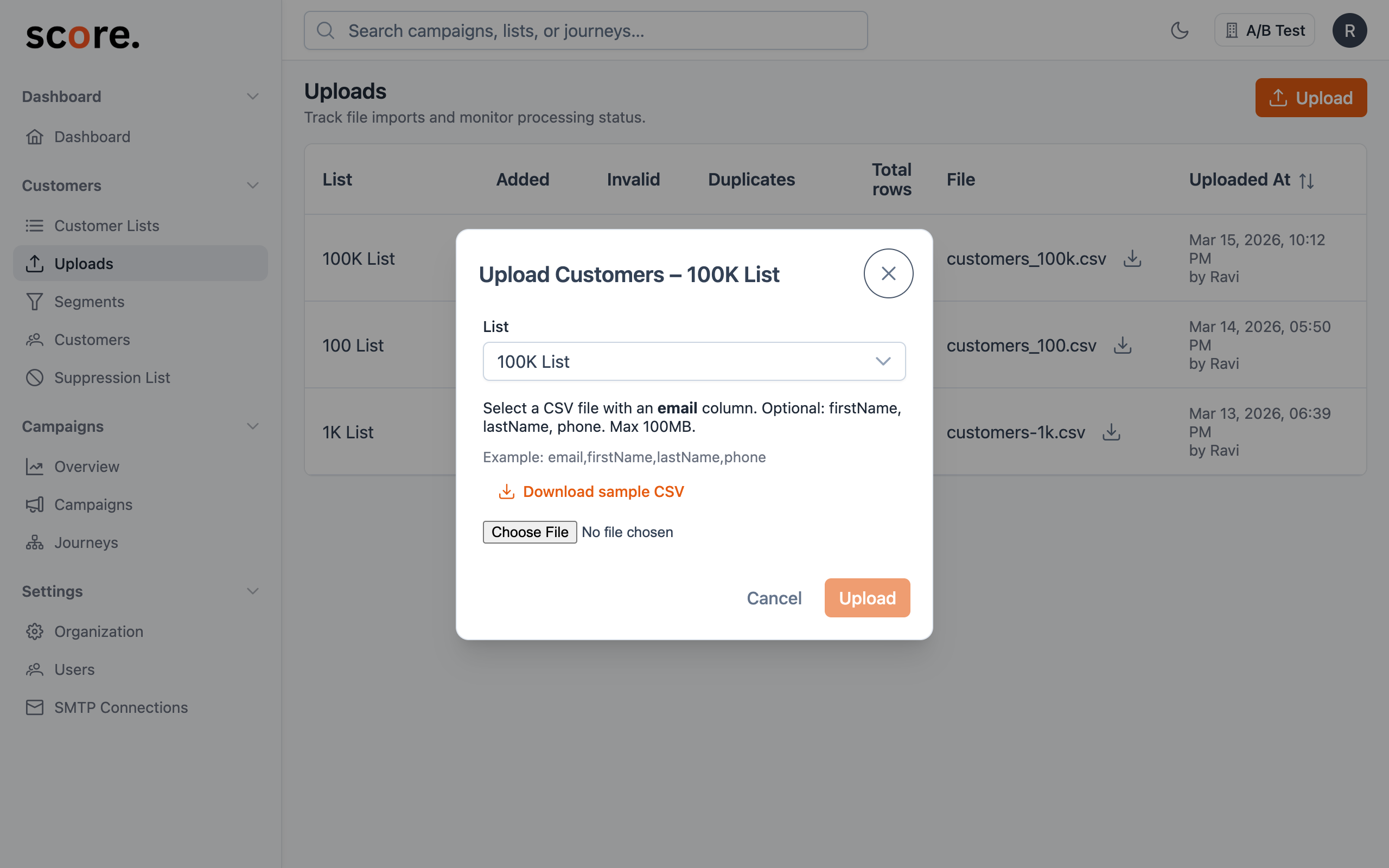
- Navigate to Customers → Uploads
- Select the target list you want to add customers to
- Click Upload CSV and select your file
- The system validates and processes the file
- View the upload result in the history table
What Happens During Upload
- Validation: The system checks for a valid
emailcolumn and validates email formats - Deduplication: If a customer with the same email already exists, their data is updated (upserted) with the new values
- List Mapping: Each customer is associated with the selected target list
- Custom Fields: Non-standard columns are stored in the customer's custom fields map
Since emails are used as the unique identifier, uploading the same email to multiple lists simply adds the list association — it doesn't create duplicate customer records.
Upload History
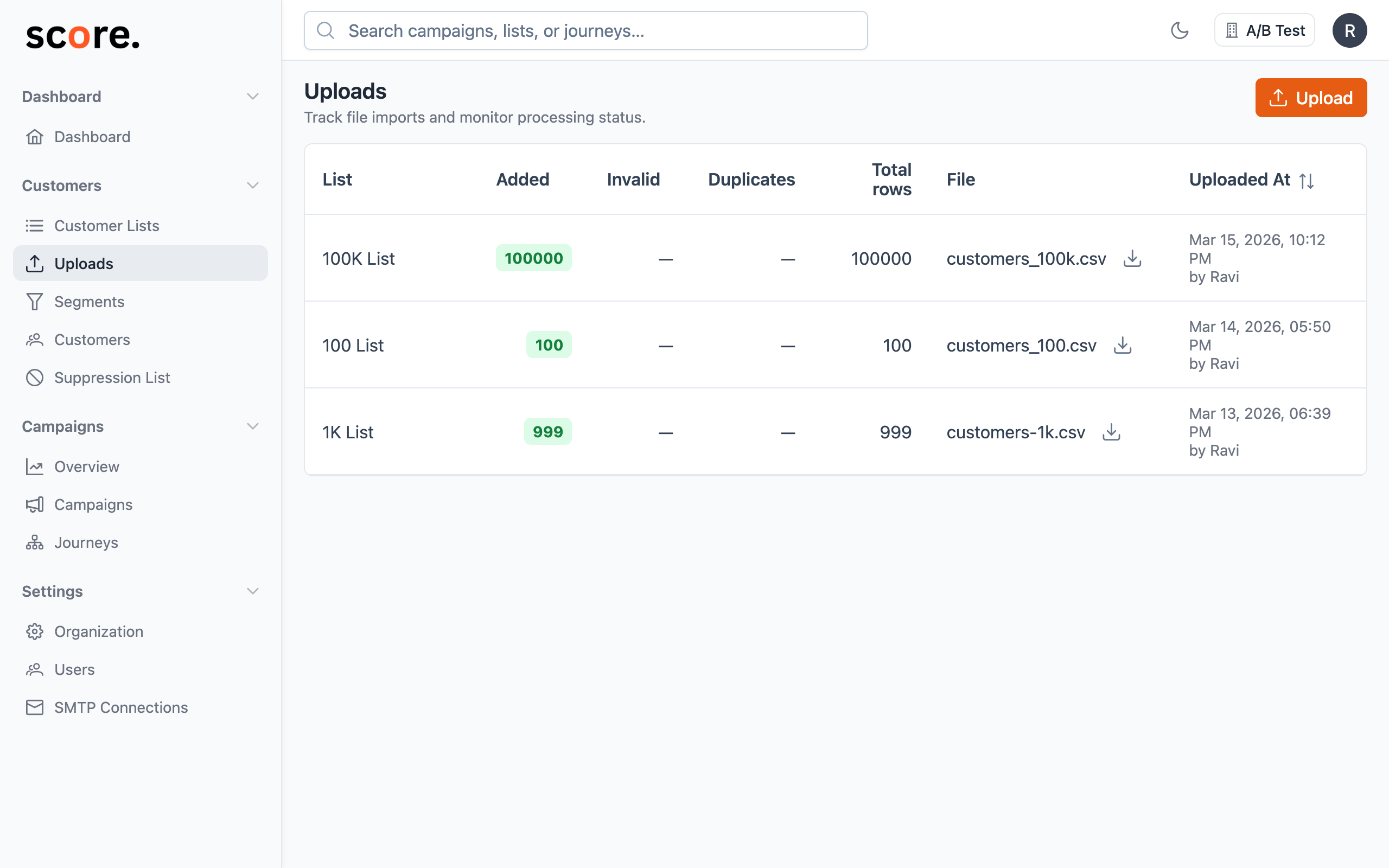
The Uploads page shows a history of all uploads with:
- Upload date and time
- Target list name
- File name
- Number of rows processed
- Status (completed, failed, processing)
Handling Errors
Common upload issues:
| Issue | Solution |
|---|---|
Missing email column | Ensure your CSV has a column named exactly email |
| Invalid email formats | Check for malformed addresses; invalid rows are skipped |
| File too large | Split your file into smaller chunks (recommended: under 200K rows per file) |
| Encoding issues | Save your CSV as UTF-8 encoding |
Best Practices
- Always include email: It's the only required and non-editable field
- Use consistent column names: Keep the same headers across uploads for consistent custom fields
- UTF-8 encoding: Ensure your CSV is saved in UTF-8 to handle international characters
- Test with small files first: Upload a sample of 10-100 rows before importing your full list
- Deduplicate beforehand: While Score CRM handles upserts, cleaning your CSV first speeds up processing